How To Create A QR Code Using Microsoft Word And Google Docs
Create QR code in Word and Google Docs: QR codes have become a standard way to link printed material, whether it’s a resume, an event flyer, an invoice or a classroom handout, straight to a website, form or contact card.
लेखक Ayush Mukherjee··45K पढ़े गए
How To Create A QR Code Using Microsoft Word And Google Docs
Create QR code in Word and Google Docs: QR codes have become a standard way to link printed material, whether it’s a resume, an event flyer, an invoice or a classroom handout, straight to a website, form or contact card. What many people don’t realise is that you don’t always need a separate app or website to generate one. Microsoft Word actually has a hidden, built-in way to create QR codes, while Google Docs relies on your browser or an add-on instead. Here’s how to do both.
Method 1: Create a QR Code in Microsoft Word (Windows)
Word for Windows has a built-in field code called DISPLAYBARCODE that can generate a QR code without installing anything extra. This only works on Word for Windows, not Word Online or Word for Mac.
Open your Word document and click where you want the QR code to appear.
Press Ctrl + F9. This inserts a special pair of field braces, shown as { }. Do not type these braces yourself, as Word needs to generate them.
Between the braces, type the following exactly: DISPLAYBARCODE "https://www.yourwebsite.com" QR q 3, replacing the URL with whatever link or text you want encoded.
Right-click the field and select Toggle Field Codes, or press Alt + F9, to render the code as a scannable image.
Resize the image as needed, and leave clear white space around it so scanners can read it properly.
Note: the q switch controls error correction quality, and a value of 3 is generally a safe, reliable setting for most printed documents. Always scan the generated code with your phone before printing or sharing the file, just to confirm it points where you intended.
Method 2: Create a QR Code in Word on Mac or Word Online
Since the DISPLAYBARCODE field only works on Windows, Mac and web users need a different route:
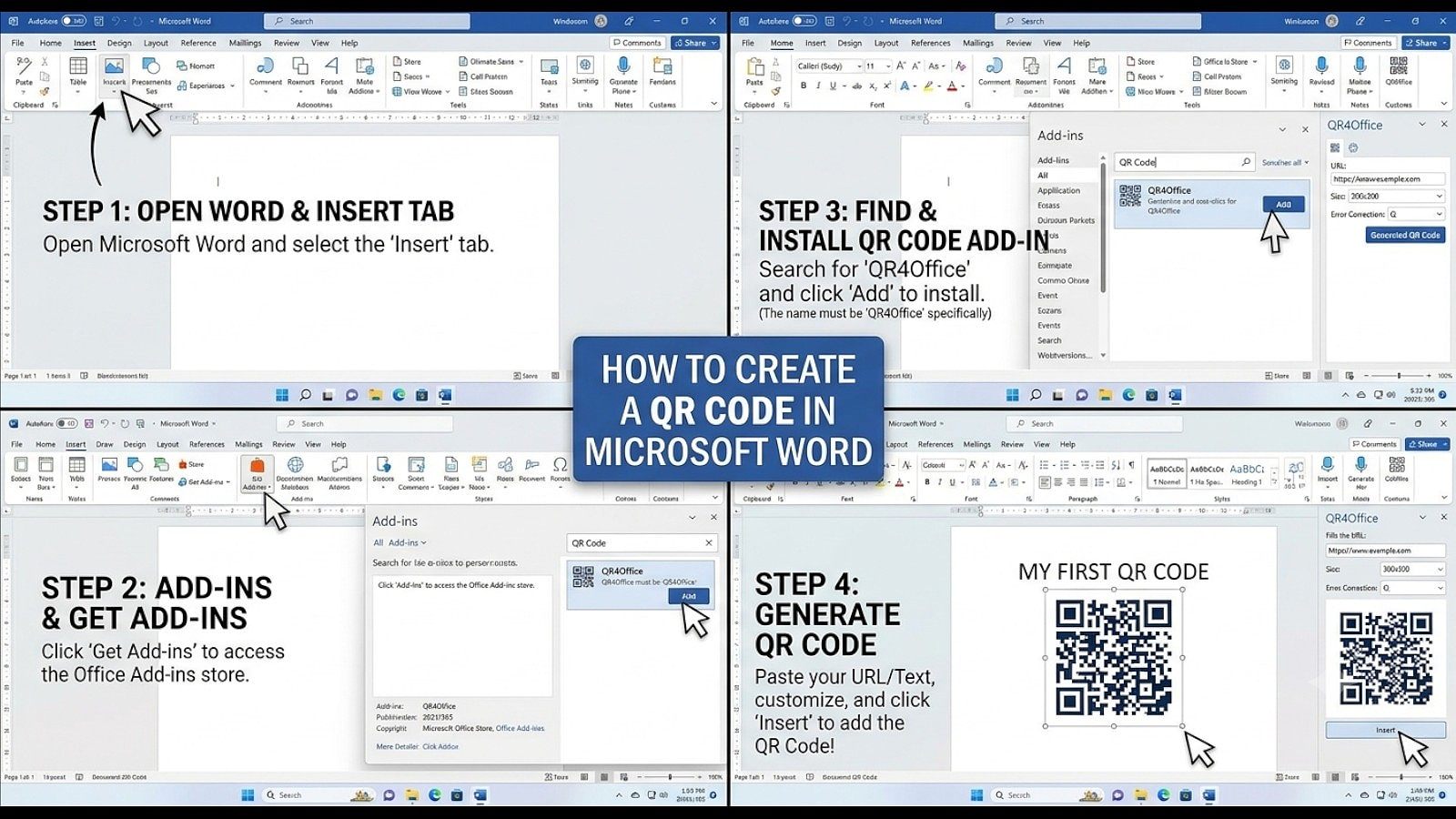
Go to the Insert tab and click Get Add-ins (or Add-ins depending on your version).
Search for a QR code add-in, such as QR4Office, and install it.
Open the add-in from the ribbon once installed.
Enter the URL or text you want encoded, adjust size settings if the add-in allows it, and generate the code.
The QR code image can then be inserted directly into your document.
If an add-in isn’t available or working for you, a simple fallback is to generate the QR code on any trusted online QR generator, download it as an image, and insert it into Word the same way you would insert any picture.
How To Create A QR Code In Google Docs
Unlike Word, Google Docs has no built-in field or menu option for generating QR codes. Instead, the two practical routes are through Chrome’s browser-level QR tool or a Docs add-on.
Option 1: Use Chrome’s Built-In QR Generator
This method creates a QR code that links to your document’s share URL, rather than embedding a code inside the document itself, so it works best when you want people to scan their way into the actual Google Doc.
Open your Google Doc in Chrome and click Share in the top-right corner.
Under General access, set sharing to Anyone with the link, and choose Viewer, Commenter or Editor as appropriate.
Click Done, then click the share icon at the right end of Chrome’s address bar.
Select Create QR Code from the menu that appears.
Click Download to save the QR code image to your device.
You can also get to this option by right-clicking anywhere on the open document page and selecting the same “Create QR code for this page” option from the context menu.
Option 2: Use a Google Docs Add-on
If you’d rather generate and place the QR code directly inside the document itself, an add-on is the way to go:
Open your Google Doc and go to Extensions in the menu bar.
Click Add-ons, then Get add-ons.
Search for “QR code” and choose a reputable QR code generator add-on from the results.
Install it, then open it from the Extensions menu.
Paste in your URL or text and generate the code.
Copy or insert the generated QR code image into your document.
Word vs Google Docs: Which QR Code Generates Faster
If you’re on Word for Windows, the DISPLAYBARCODE field is the fastest option since it needs no downloads and keeps the QR code editable within the document itself. Mac, Word Online and Google Docs users don’t have that native shortcut, so an add-in or add-on, or a quick trip to an online QR generator followed by inserting the image, is the more realistic path. For Google Docs specifically, Chrome’s built-in tool is the simplest if you just want people scanning their way straight into the document.